![GuestRevu-logo-white_no-slogan.png]](https://help.guestrevu.com/hs-fs/hubfs/New%20Logo/GuestRevu-logo-white_no-slogan.png?height=40&name=GuestRevu-logo-white_no-slogan.png)
|
This article applies to:
|
This is useful if you have multiple users and want to choose who responds to your guests or who shares comments on social media, for example. You can also give users different levels of permission for different properties in your group.
- Log in to your GuestRevu account at https://my.guestrevuapp.com
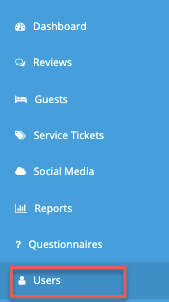
- Click on Users

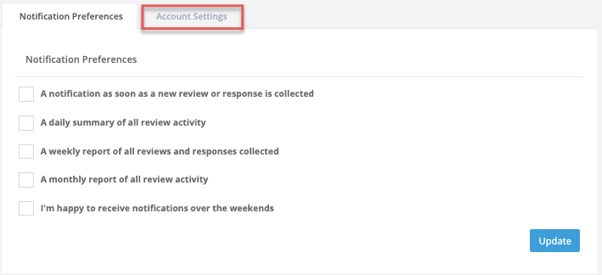
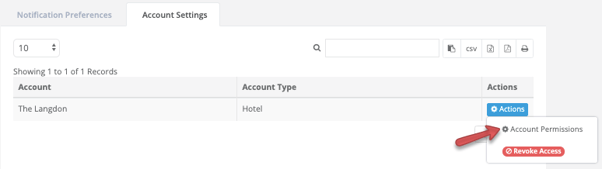
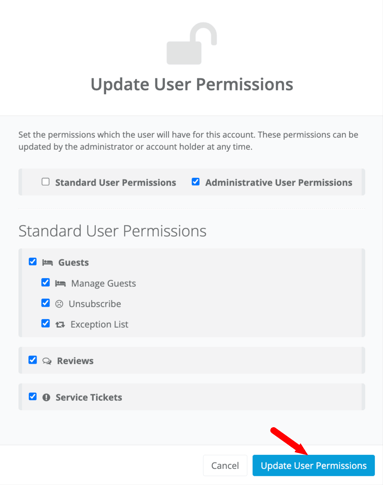
Standard user permissions include everything from Guests > Social Media. Administrative user permissions include additional control over the account such as adding new users, editing questionnaire templates and branding etc.
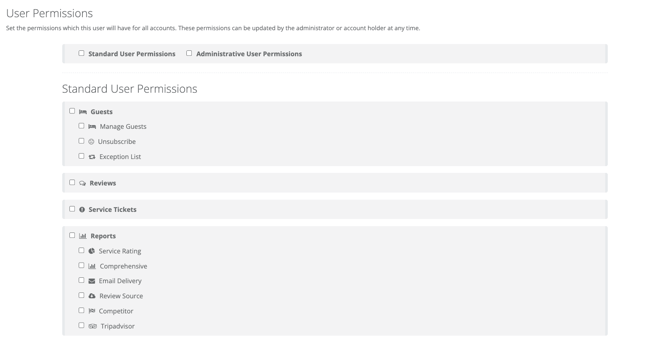
7. Once you’re happy with your selection, click on Update User Permissions to save your settings.
Top Tip 💡
Service Tickets are great for in-house team communication. You can share positive feedback with team members, or use them to ensure issues from feedback and online reviews can get resolved quickly and easily. Find out more about how service tickets can change the way you manage your property, or find out how to use them here.