![GuestRevu-logo-white_no-slogan.png]](https://help.guestrevu.com/hs-fs/hubfs/New%20Logo/GuestRevu-logo-white_no-slogan.png?height=40&name=GuestRevu-logo-white_no-slogan.png)
There are two ways to verify your identity:
- Email verification code: Receive a one-time verification code via email that allows you to log in
- Authenticator App: Use an authenticator app (eg. Google Authenticator) on your mobile device to generate a verification code
You can choose the method that works best for you.
How to enable MFA
Before you begin, make sure you have access to the email address associated with your GuestRevu account. If you choose to use an authenticator app, have your mobile device available.
- Log in to your GuestRevu account at https://my.guestrevuapp.com/login
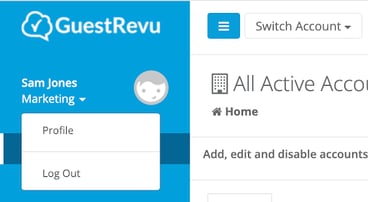
- Click the arrow beneath your name in the top left-hand corner and select Profile
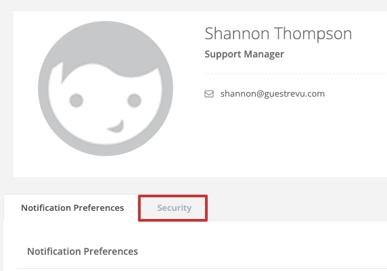
- Select the Security tab
- Choose your preferred MFA method and click Start setup
Option 1: Email verification code
If you choose to receive a verification code by email:
- After clicking Start setup, a one-time verification code will be sent to the email address associated with your GuestRevu account
- Enter the verification code sent to your email, and click Confirm setup
- Once MFA has been enabled, you will be presented with recovery codes. Make sure you download or record these codes and keep them somewhere safe!
- Once the recovery codes have been downloaded and stored in a safe place, click I have saved these codes
- You will be redirected back to the login screen and will need to log in again using a new verification code (not the same one you used for MFA Setup)
If you don’t receive the email containing your verification code:
- Check your spam or junk folder
- Make sure you are checking the email address associated with your GuestRevu account
- Wait a few moments and try requesting a new code
If you still don’t receive a code, please contact the GuestRevu Support team.
Option 2: Google Authenticator app
You can also use the Google Authenticator app to generate your verification codes.
Before you begin, install Google Authenticator on your mobile device.
- Select the Google Authenticator option
- Open the Google Authenticator app
- In GuestRevu, you’ll be shown a secret key, a setup URI, and a setup QR code
- You can set up Google Authenticator in any of the following ways:
- Scan the QR code: Use Google Authenticator to scan the QR code provided
- Enter the secret manually: Enter the secret key shown in GuestRevu into Google Authenticator
- Google Authenticator will generate a 6-digit verification code
- Enter the 6-digit verification code, and click Confirm to complete the setup
- Once MFA has been enabled, you will be presented with recovery codes. Make sure you download or record these codes and keep them somewhere safe!
- Once the recovery codes have been downloaded and stored in a safe place, click I have saved these codes
- You will be redirected back to the login screen and will need to log in again using a new verification code (not the same one you used for MFA Setup)
Recovery codes
Recovery codes are backup codes that you can use to access your GuestRevu account even if you're unable to access your usual MFA method.
For example, you may need a recovery code if you no longer have access to the device where your authenticator app is installed.
We recommend downloading and storing your recovery codes somewhere safe when you enable MFA.
Regenerating your recovery codes
You can generate a new set of recovery codes from your Security settings
Important: Regenerating your recovery codes will replace your current recovery codes. Any unused codes from your previous set will no longer work.
To regenerate your recovery codes:
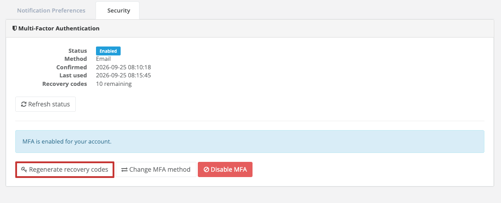
- Go to Profile > Security
- Click Regenerate recovery codes
- Check your email for the verification code or your authenticator app, depending on your method
- Enter the verification code
- Click Regenerate codes
- Download and securely save your new recovery codes
Any recovery codes generated previously will no longer be valid once the new codes have been generated.
Changing your MFA method
You can change your MFA method from email verification to an authenticator app, or from an authenticator app to email verification in your security settings.
To change your MFA method:
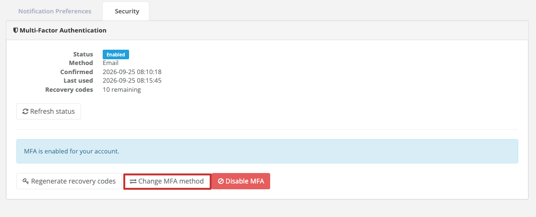
- Go to Profile > Security
- Click Change MFA method
- Enter the verification code sent to your email or your authenticator app, depending on your method
- Click Start method change
- Follow the instructions to set up your new MFA method
Once you have changed your MFA method, you will need to use the new method to generate a verification code to log in again.
Disabling MFA
We recommend always using MFA. This helps keep your data and your guests' data safe. In addition, many hotels and other businesses have rules that require you to use MFA.
If you no longer want to use MFA, you can disable it from your Security settings.
To disable MFA:
- Go to Profile > Security
- Click Disable MFA
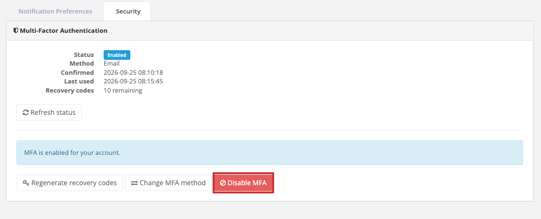
- Enter the verification code sent to your email or your authenticator app, depending on your method
- Click Disable MFA
- You'll be redirected to the GuestRevu login screen
- Log in again using your username and password
MFA will no longer be required when you log in.
Logging in with MFA
Once MFA is enabled, you'll need to complete an additional verification step when logging in.
After entering your username and password:
- Email verification: Check your email for your verification code and enter the code when prompted.
- Authenticator app: Open your Authenticator app, generate a new six-digit code and enter it when prompted.
- Recovery code: If you can't access your usual MFA method, you can use one of your recovery codes.
Keep your recovery codes somewhere secure and make sure you can access them if you need them.